
Browse articles
- Practice details
- Brand your documents: logo, fonts, colours and artwork
- Project numbering
- Custom fields
- Task statuses
- Task types
- Adding an office
- Office billing details
- Give your people a home entity
- How permissions work
- Setting someone's access level
- Practice finances access
- Rates access
- Access to one project
- Project role access
- Project admin access
- Team role access
- What each access switch controls
- Contacts access
- Project creation access
- Expense claims access
- Report access
- Staff management access
- Sign-in security
- Verify your sending domain
- Activity and undo
- Connect your own AI agent
- Moving and linking stages
- Critical path and automatic dates
- Large projects
- How do I move a task to another stage?
- Billing milestones
- Checklists and notes
- Your projects
- Tracking schedule slips
- How do I change a project's status?
- How do I rename a project?
- Closing a project
- How do I archive or complete a project?
Practice finances
See how the practice is tracking: work secured over the next three months, the financial year, the margin, the worst month for cash, then the cash flow, the Portfolio and the Forecast.
What you'll achieve
Know where the practice is heading for the next few months, from one page.
You'll end up with: You read the forecast and cash flow against your targets each month.
Most of Monument is about one project at a time. Practice finances is about all of them together: how much work is secured, what the pipeline might add, whether cash stays above zero, and how margin compares with your targets.
The video reads Meridian Studio, the demo practice, which already has secured and pipeline work, invoices and overheads.
Overview
- 1
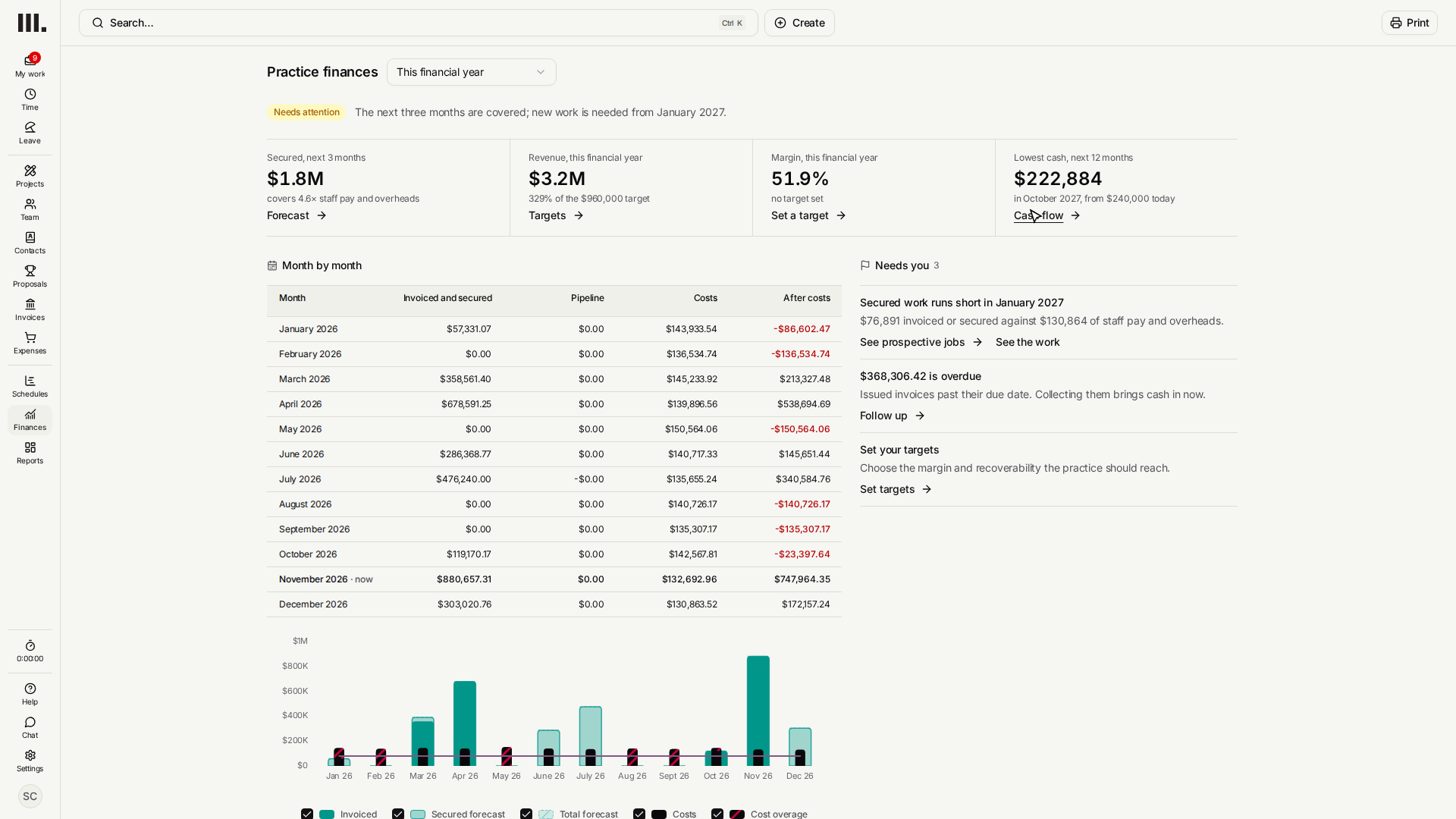
Open Practice finances, then Overview. The line at the top says whether the studio is on track, and why. Needs you lists anything to act on, such as overdue invoices or a cash shortfall, each with a link that fixes it.
- 2
Read the header, one figure at a time: Secured, next 3 months is work already won and how many times it covers staff pay and overheads; Revenue is how the financial year is looking against the target; Margin is the margin for the year against the one you aim for; and Lowest cash, next 12 months is your worst upcoming month.
- 3
Choose the Period at the top: this or last financial year, the next financial year, or the next 12 months. Every figure on the page follows it.
- 4
Month by month lists each month: work invoiced and secured, the pipeline, costs, and what is left after costs. A month in red does not cover its costs. The chart under it draws the same months.
- 5
Cash flow shows the next six months of money in and out, and the bank balance at the end of each. Against your targets compares revenue, operating margin, recoverability and labour multiplier with the targets you set.
Secured work counts in full. Pipeline work counts at its likelihood, so a $100,000 job at 40% adds $40,000 to the weighted figure. That's why recording leads with a likelihood matters.
Cash flow
- 1
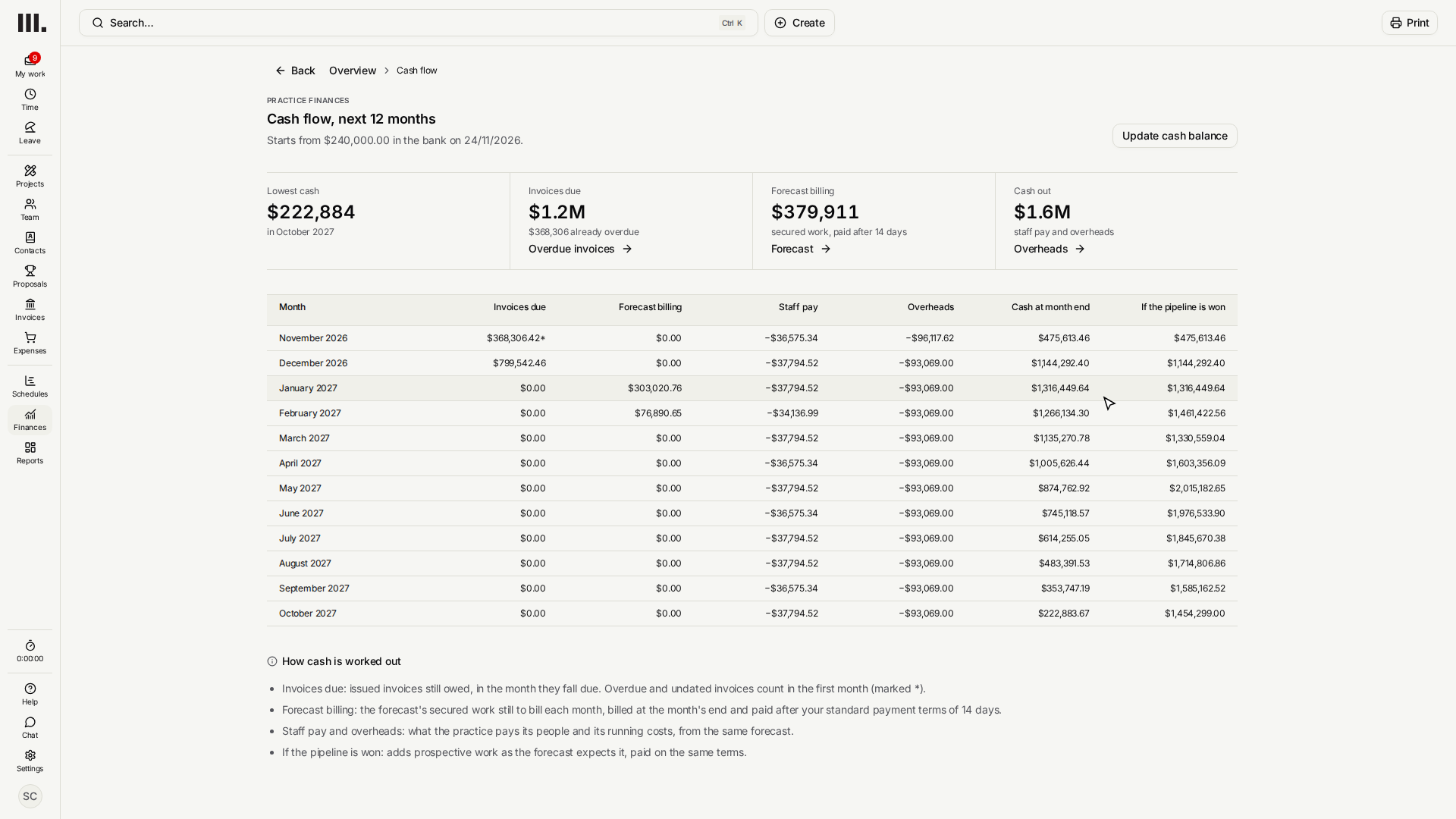
Click Cash flow under Lowest cash to see why that month is the tightest.
- 2
Invoices due is money clients already owe, in the month it falls due. Forecast billing is secured work still to invoice, paid on your standard payment terms. Cash out is staff pay and overheads.
- 3
The table works it through month by month, from the cash in the bank today to the balance at the end of each month. How cash is worked out spells out every line, so you can check it with your bookkeeper.
Portfolio
- 1
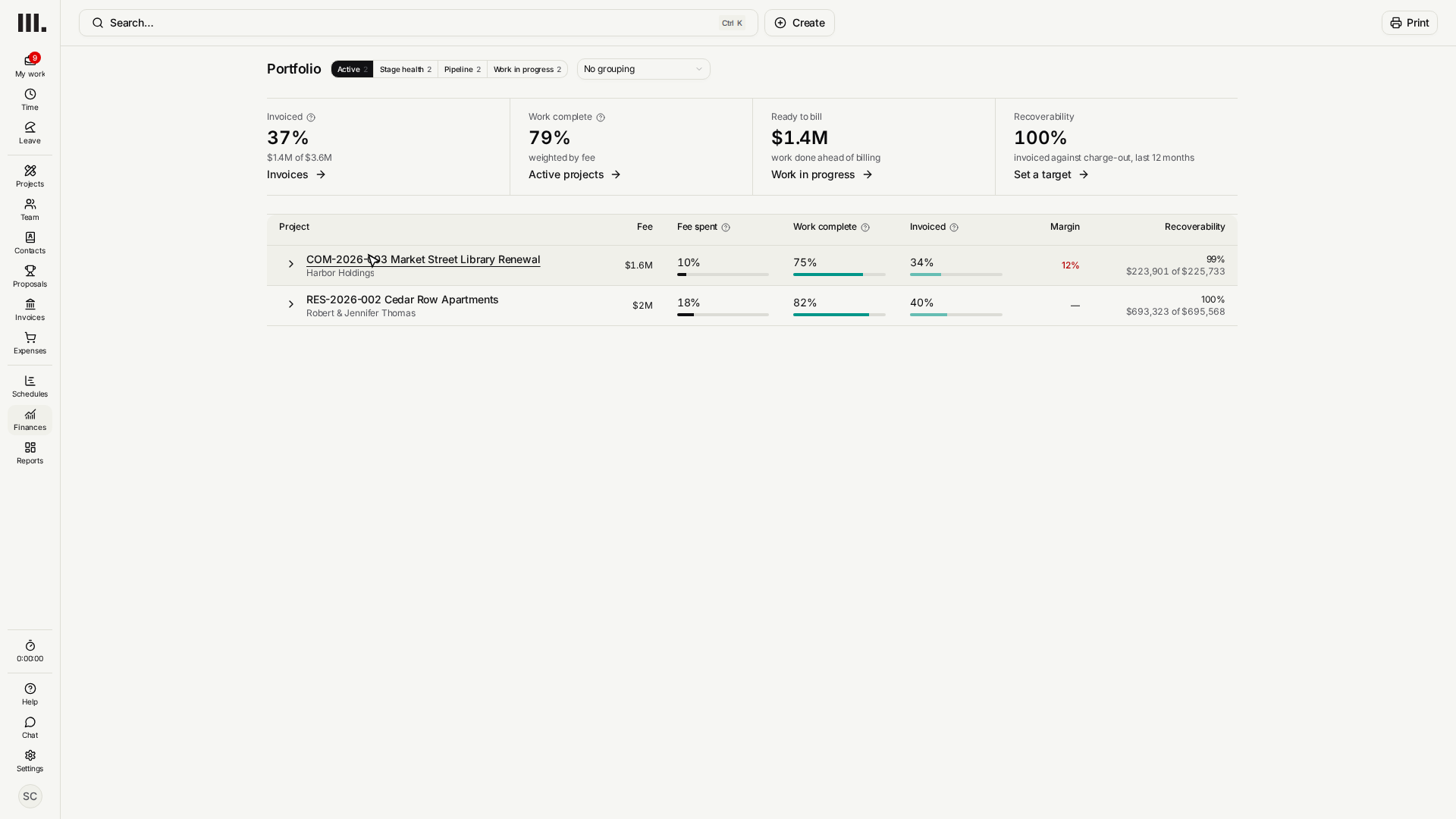
Open Portfolio for every project's money in one place. The header shows how much of all fees is Invoiced, how much of the work is complete, and what is Ready to bill: work done but not yet invoiced.
- 2
Each active project shows its fee, how much is spent and invoiced, and its margin.
- 3
Switch the list across the top: Pipeline for the jobs you hope to win, with fee and likelihood, and Work in progress for projects with work done ahead of their invoices. Stage health shows each project's stages.
- 4
Use Group to sort projects under each client or project type, so you can see which kinds of work pay.
Forecast
Open Forecast for revenue month by month across the schedule, with secured work in the solid bars and the pipeline above it. It is the plan the Overview's figures come from.
Troubleshooting
- There's no Practice finances on your rail. It needs Business finances access.
- Cash flow shows only monthly movement. No cash balance is set. Add it in Settings → Finances.
- Cash flow says it needs staff pay. You can't see staff pay, so cash out is hidden.
Where this fits next
This is step 1 of Steer the practice. Next, set practice targets and track revenue against them.
Search Monument help
Search help articles and open a result.