
Browse articles
- Practice details
- Brand your documents: logo, fonts, colours and artwork
- Project numbering
- Custom fields
- Task statuses
- Task types
- Adding an office
- Office billing details
- Give your people a home entity
- How permissions work
- Setting someone's access level
- Practice finances access
- Rates access
- Access to one project
- Project role access
- Project admin access
- Team role access
- What each access switch controls
- Contacts access
- Project creation access
- Expense claims access
- Report access
- Staff management access
- Sign-in security
- Verify your sending domain
- Activity and undo
- Connect your own AI agent
- Moving and linking stages
- Critical path and automatic dates
- Large projects
- How do I move a task to another stage?
- Billing milestones
- Checklists and notes
- Your projects
- Tracking schedule slips
- How do I change a project's status?
- How do I rename a project?
- Closing a project
- How do I archive or complete a project?
Fee proposal templates
Write your covering letter, exclusions, payment terms and engagement wording once, so every fee proposal starts from the practice's own words.
What you'll achieve
A default fee proposal template that every new proposal starts from.
You'll end up with: New fee proposals open with your practice's letter, terms and stages already in place.
Before you start
Most of a fee proposal is the same every time: the covering letter, what you exclude and assume, how you're paid, and how the engagement works. A fee proposal template holds that wording, so each proposal only needs the parts that change: the client, the project and its fees.
At Northlight Architects, Sarah Chen sets up the template the practice uses for residential jobs like Riverside Apartments.
Where the stages come from
A fee proposal's scope of services and fees come from stages. The template's Stages from setting decides which:
- The project you choose: each proposal takes its stages and fees from the project it's written for. This suits most practices, because the fees already sit on the project.
- A project template: the proposal takes the stages and fees of that template. Use it for standard work you price the same way every time.
Create the template
- 1
Point at Settings, choose Templates, then Fee proposals. Click New fee proposal template.
- 2
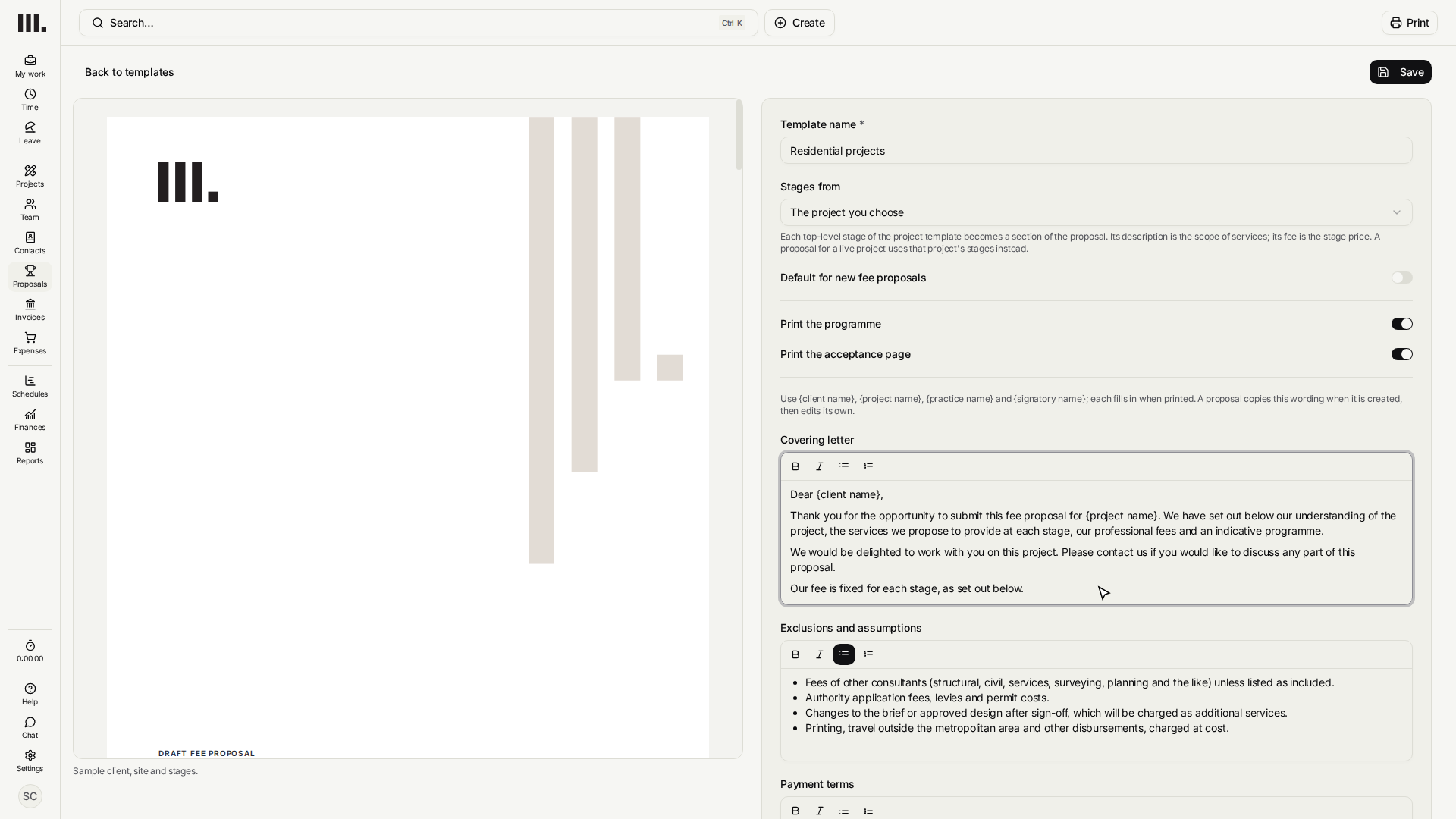
Enter a Template name, for example Residential projects.
- 3
Keep Stages from on The project you choose, unless you price this kind of work from a project template.
- 4
Write the Covering letter. Words in braces, such as {client name} and {project name}, fill in when the proposal prints. The preview beside the fields shows a sample client, site and stages.
- 5
List what your fee doesn't cover under Exclusions and assumptions, then check Payment terms and Engagement.
- 6
Keep Print the programme on to include the stage dates, and Print the acceptance page on to give the client a page to sign.
- 7
Switch on Default for new fee proposals, then click Save.
- 8
Open Fee proposals again. Residential projects is marked Default, so every new fee proposal starts from it.
- 9
Click New fee proposal template again, name the second one Small works, and save it.
- 10
Both templates are listed. When you write a fee proposal, Wording from lets you pick either one.
You'll know it worked when Settings › Templates › Fee proposals lists your template as the Default.
Keep one template per kind of work if your wording differs, for example residential and public buildings. The default is the one a new fee proposal starts from; you can pick another when you write it.
Troubleshooting
- The preview shows no stages. The linked project template has no top-level stages yet. Add them on its schedule, or choose The project you choose.
- A stage prints with no scope text. Give that stage a description on the schedule.
- Save does nothing. Enter a template name.
Where this fits next
Related articles
Search Monument help
Search help articles and open a result.