
Browse articles
- Practice details
- Brand your documents: logo, fonts, colours and artwork
- Project numbering
- Custom fields
- Task statuses
- Task types
- Adding an office
- Office billing details
- Give your people a home entity
- How permissions work
- Setting someone's access level
- Practice finances access
- Rates access
- Access to one project
- Project role access
- Project admin access
- Team role access
- What each access switch controls
- Contacts access
- Project creation access
- Expense claims access
- Report access
- Staff management access
- Sign-in security
- Verify your sending domain
- Activity and undo
- Connect your own AI agent
- Moving and linking stages
- Critical path and automatic dates
- Large projects
- How do I move a task to another stage?
- Billing milestones
- Checklists and notes
- Your projects
- Tracking schedule slips
- How do I change a project's status?
- How do I rename a project?
- Closing a project
- How do I archive or complete a project?
Setting someone's access level
Save an account access level for a colleague, then preview Monument exactly as they see it.
What you'll achieve
Assign a person's account access level and verify its effect with truthful, read-only Preview.
You'll end up with: Priya Sharma has a saved Team member access level that has been verified through Preview.
Before you start
Start with the person, then verify the result
An account access level is the firm-wide part of a person's access. Its switches are in groups: Finances & rates (Revenue, Billable rates, Cost rates, Practice finances), Projects, Team (Staff & team management), Reports (Practice reports), Records (Clients & Contacts, Quotes), Invoices, Expenses, Time, and Admin. Project revenue and project expenses are separate. They come from project access levels, not directly from the account level.
Some things have no switch, because everyone has them. Everyone records their own time, leave and admin time. Everyone sees leave and public holidays, and both schedules.
This tutorial uses Priya Sharma and saves Team member, the default account access level for new staff. Team member can create and change expense claims and view Clients & Contacts. Revenue, the rate switches, Practice finances, Staff & team management, Invoices and Quotes stay Hidden. Its Projects switch is View, so Priya cannot create projects. Its Default project access is Viewer, so she can read every project she is not added to by name.
Save the level before previewing
- 1
Open Priya Sharma from Team › Team members, then choose the Access tab.
- 2
Select Team member as her Access level, and click Save.
- 3
Confirm Team member is shown on the saved Access tab.
Saving matters because Preview resolves the selected person's real server-side assignment. It does not inspect an unsaved dropdown value.
This sequence explicitly covers selecting Team member and clicking Save before the preview begins.
Preview the saved principal
- 1
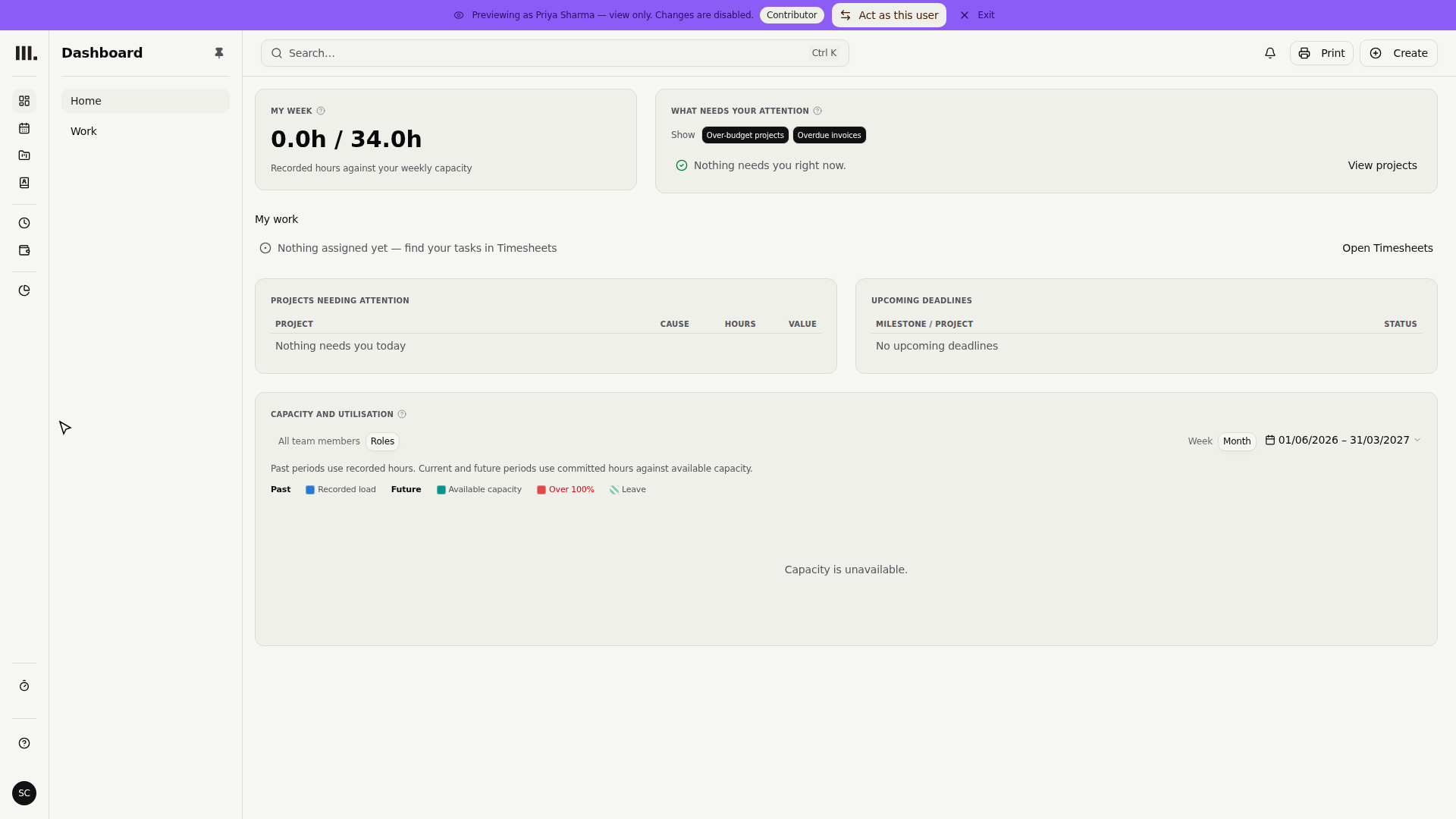
Click Preview on Priya Sharma's Access tab.
- 2
Check that Invoices is hidden on the rail while Projects remains reachable.
- 3
Click Exit on the preview banner to return to your administrator view.
Preview uses Priya Sharma's server-resolved permissions, including project and team access. It is read-only. Monument rejects create, edit, and delete operations before they can have side effects.
Reachability is not row access
Projects remains in the navigation for every active member. That does not mean every person sees every project. Which rows they see follows their Default project access. With Viewer, Priya can read projects she is not added to by name. Confidential projects can still be closed to her. With None, each visible row would need a grant from an explicit assignment, ownership, a matching rule, or an allocation.
Invoices is hidden for Priya because Team member has Revenue and Invoices Hidden.
Troubleshooting
- Preview does not match the dropdown. Click Save first, then start Preview again.
- A project is missing. Check the person's project grants, assignments, matching rules, the project's confidential status, and their Default project access.
- You cannot change anything during Preview. This is expected. Click Exit on the preview banner before editing.
Where this fits next
Continue with Practice finances to see one account switch move from Hidden to Edit, or use the full permissions reference for all three permission domains.
Search Monument help
Search help articles and open a result.