
Browse articles
- Practice details
- Brand your documents: logo, fonts, colours and artwork
- Project numbering
- Custom fields
- Task statuses
- Task types
- Adding an office
- Office billing details
- Give your people a home entity
- How permissions work
- Setting someone's access level
- Practice finances access
- Rates access
- Access to one project
- Project role access
- Project admin access
- Team role access
- What each access switch controls
- Contacts access
- Project creation access
- Expense claims access
- Report access
- Staff management access
- Sign-in security
- Verify your sending domain
- Activity and undo
- Connect your own AI agent
- Moving and linking stages
- Critical path and automatic dates
- Large projects
- How do I move a task to another stage?
- Billing milestones
- Checklists and notes
- Your projects
- Tracking schedule slips
- How do I change a project's status?
- How do I rename a project?
- Closing a project
- How do I archive or complete a project?
Rates access
Hide charge-out and cost rates from staff, or let them view or edit them, without exposing salaries or the practice's finances.
What you'll achieve
Set and verify access to the billable and cost rate catalogues.
You'll end up with: Marcus Webb has Director access and can inspect and change the rate catalogues.
Before you start
To see rates beside the other finance switches, read Keep practice finances and rates private.
Billable rates and Cost rates are two switches
The Finances & rates group of the Account level has two rate switches. Each is Hidden, View or Edit.
- Billable rates covers the billable rate catalogue: its versions and defaults, staff, role and team billable rates, and custom rate types of the billable kind.
- Cost rates covers the internal cost rate catalogue: staff, role and team cost rates, and custom rate types of the cost kind.
The two switches do not need each other. A person can have Cost rates without Billable rates. Cost figures in reports, team budget costs, effective rates and portfolio cost figures need Cost rates only.
Neither switch gives salaries, overheads or labour cost. Those follow Practice finances, as do custom rate types of the "other" kind.
Project billing values still need project Revenue. Project cost values still need project Expenses. The rate switches do not replace either.
Rate rules on projects follow Projects Edit, not the rate switches. Recalculating the recorded rates on time entries needs Billable rates Edit, and Revenue Edit or Expenses Edit on each entry's project.
Compare a denied catalogue with full access
- 1
Go to Team › Team members and open Marcus Webb's page. Click Profile, then the Access section. Choose Team member, click Save, then click Preview.
- 2
Confirm the navigation has no Team button while Billable rates and Cost rates are Hidden. The Team schedule stays under Schedules.
- 3
Click Exit on the Preview banner. Choose Director, click Save, then click Preview again.
- 4
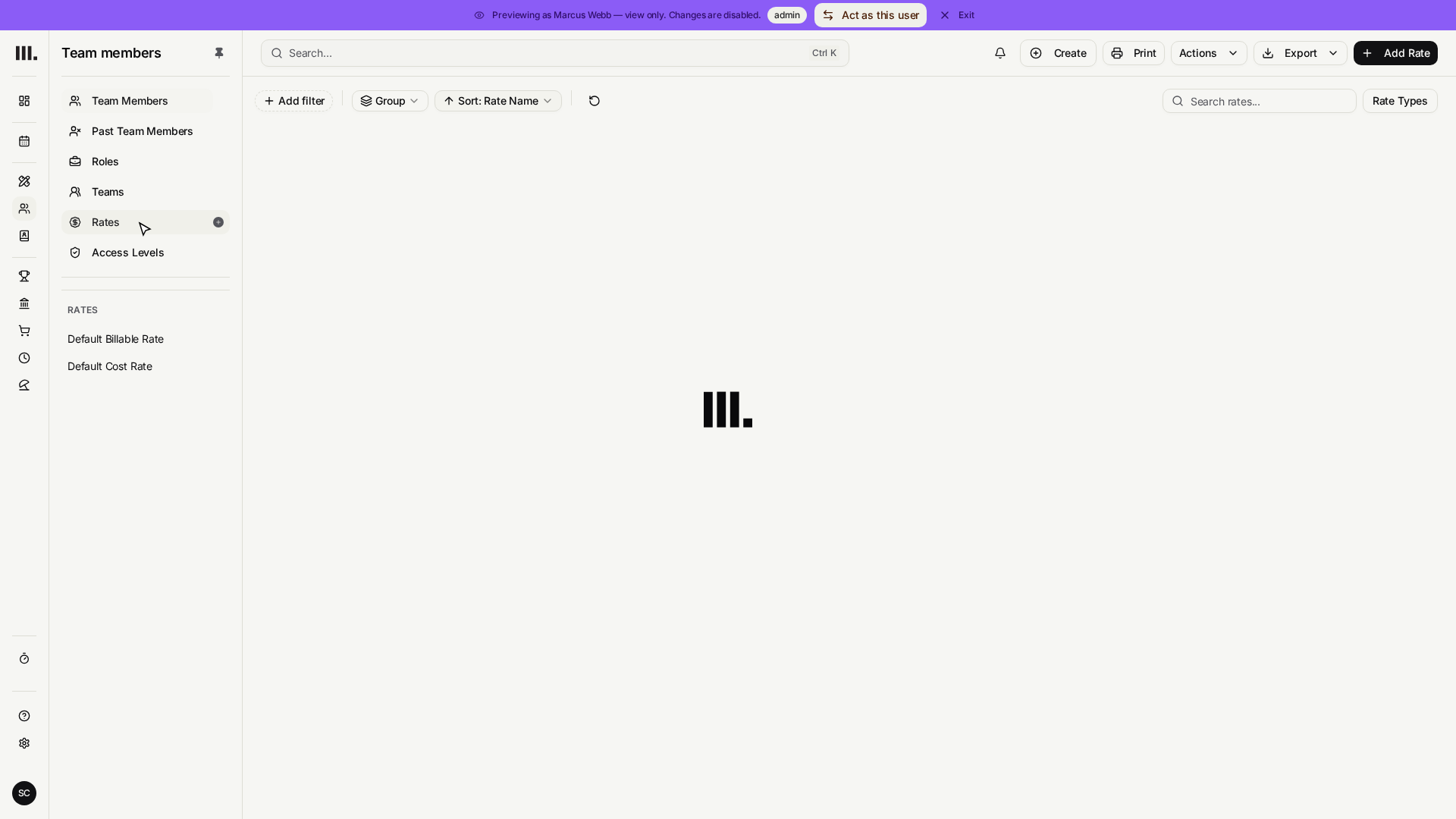
Go to Team › Rates and confirm Change charge-out rates and Add rate type are there.
Salaries, salary periods, overheads, labour cost and custom "other" rates need Practice finances. None of the three switches gives another.
Troubleshooting
- Team is missing from the navigation. A person needs profile access, a rate switch, Practice finances, or Staff & team management to see the Team button.
- The Rates page shows only some rates. It shows the kinds the person can see: billable with Billable rates, cost with Cost rates, other with Practice finances.
- A project rate is visible while the catalogue is hidden. Project Revenue or Expenses can allow the billing or cost value on that project.
- Add rate type is absent. Adding a rate type needs Edit on at least one rate kind.
Where this fits next
See rates and rate history for catalogue maintenance, or continue to Create projects.
Search Monument help
Search help articles and open a result.