
Browse articles
- Practice details
- Brand your documents: logo, fonts, colours and artwork
- Project numbering
- Custom fields
- Task statuses
- Task types
- Adding an office
- Office billing details
- Give your people a home entity
- How permissions work
- Setting someone's access level
- Practice finances access
- Rates access
- Access to one project
- Project role access
- Project admin access
- Team role access
- What each access switch controls
- Contacts access
- Project creation access
- Expense claims access
- Report access
- Staff management access
- Sign-in security
- Verify your sending domain
- Activity and undo
- Connect your own AI agent
- Moving and linking stages
- Critical path and automatic dates
- Large projects
- How do I move a task to another stage?
- Billing milestones
- Checklists and notes
- Your projects
- Tracking schedule slips
- How do I change a project's status?
- How do I rename a project?
- Closing a project
- How do I archive or complete a project?
Project creation access
Allow selected staff to start new projects and set rate rules, without giving them authority over existing work.
What you'll achieve
Set and verify whether a person can create new projects.
You'll end up with: Priya Sharma has an access level with Projects Edit and can start a new project.
Before you start
Projects Edit is a narrow switch
The Projects switch is in the Projects group of the Account level. It is View or Edit. Everyone has at least View, so everyone sees projects. Edit adds two things:
- creating new projects;
- setting rate rules.
Projects Edit gives no authority over existing projects. It never lets a person change other people's time. A person who creates a project becomes its Owner, but that ownership applies only to the project they created.
Which project rows a person sees still comes from Default project access, assignments, ownership, people rules, allocations and manual grants.
Of the built-in levels, only Director has Projects Edit. Office administrator, Project owner and Team member have Projects View. You can raise any level, or a custom level, to Projects Edit.
Compare the creation action
- 1
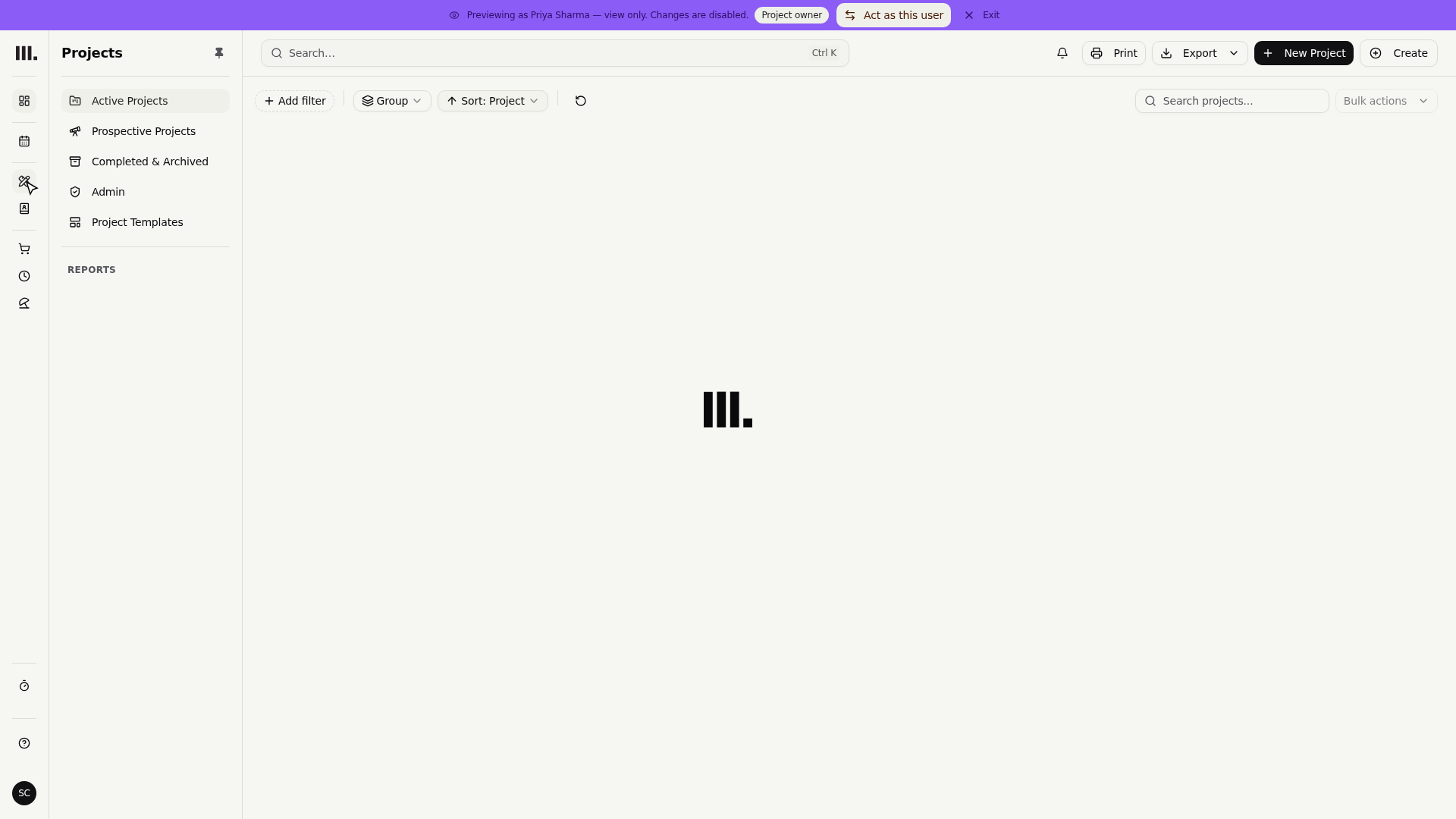
Go to Team › Team members and open Priya Sharma's page. Click Profile, then the Access section. Choose Team member, click Save, then click Preview.
- 2
Open Projects and confirm New project is absent.
- 3
Click Exit on the Preview banner. Choose Director, click Save, then click Preview again.
- 4
Open Projects and confirm New project is visible.
Changing a project's tasks, people and time follows the person's Project access level on that project. No Account switch gives this on every project.
Troubleshooting
- Projects is visible but New project is not. Everyone sees projects. Creating one needs Projects Edit.
- A creator cannot edit another project. Check their Project access level on that project.
- A newly created project has an Owner. Monument makes the person who created it the Owner.
- A person can create projects but not set rate rules. Both follow Projects Edit. Check that the level was saved before Preview.
Where this fits next
Read who manages existing projects, or learn the creation flow in create a project.
Related articles
Search Monument help
Search help articles and open a result.