
Browse articles
- Practice details
- Brand your documents: logo, fonts, colours and artwork
- Project numbering
- Custom fields
- Task statuses
- Task types
- Adding an office
- Office billing details
- Give your people a home entity
- How permissions work
- Setting someone's access level
- Practice finances access
- Rates access
- Access to one project
- Project role access
- Project admin access
- Team role access
- What each access switch controls
- Contacts access
- Project creation access
- Expense claims access
- Report access
- Staff management access
- Sign-in security
- Verify your sending domain
- Activity and undo
- Connect your own AI agent
- Moving and linking stages
- Critical path and automatic dates
- Large projects
- How do I move a task to another stage?
- Billing milestones
- Checklists and notes
- Your projects
- Tracking schedule slips
- How do I change a project's status?
- How do I rename a project?
- Closing a project
- How do I archive or complete a project?
Request leave
Check your balances, see which kinds of leave need approval, ask for time off from your Leave page, and see your balance move once it's approved.
What you'll achieve
Request a day of leave and know exactly when it counts against your balance and the schedule.
You'll end up with: A leave request your approver can decide, and a balance you can read.
Before you start
Time off isn't only an HR record in Monument. Your available hours are your working week minus public holidays, practice closures and approved leave, and those hours are what your project lead plans your work against. When you request leave properly, nobody books you for a day you're away.
At Northlight Architects, team member Marcus Webb requests a day of Annual leave. His approver, Sarah Chen, decides it. To watch Sarah's side, see Approve leave.
Your balance moves only when leave is approved
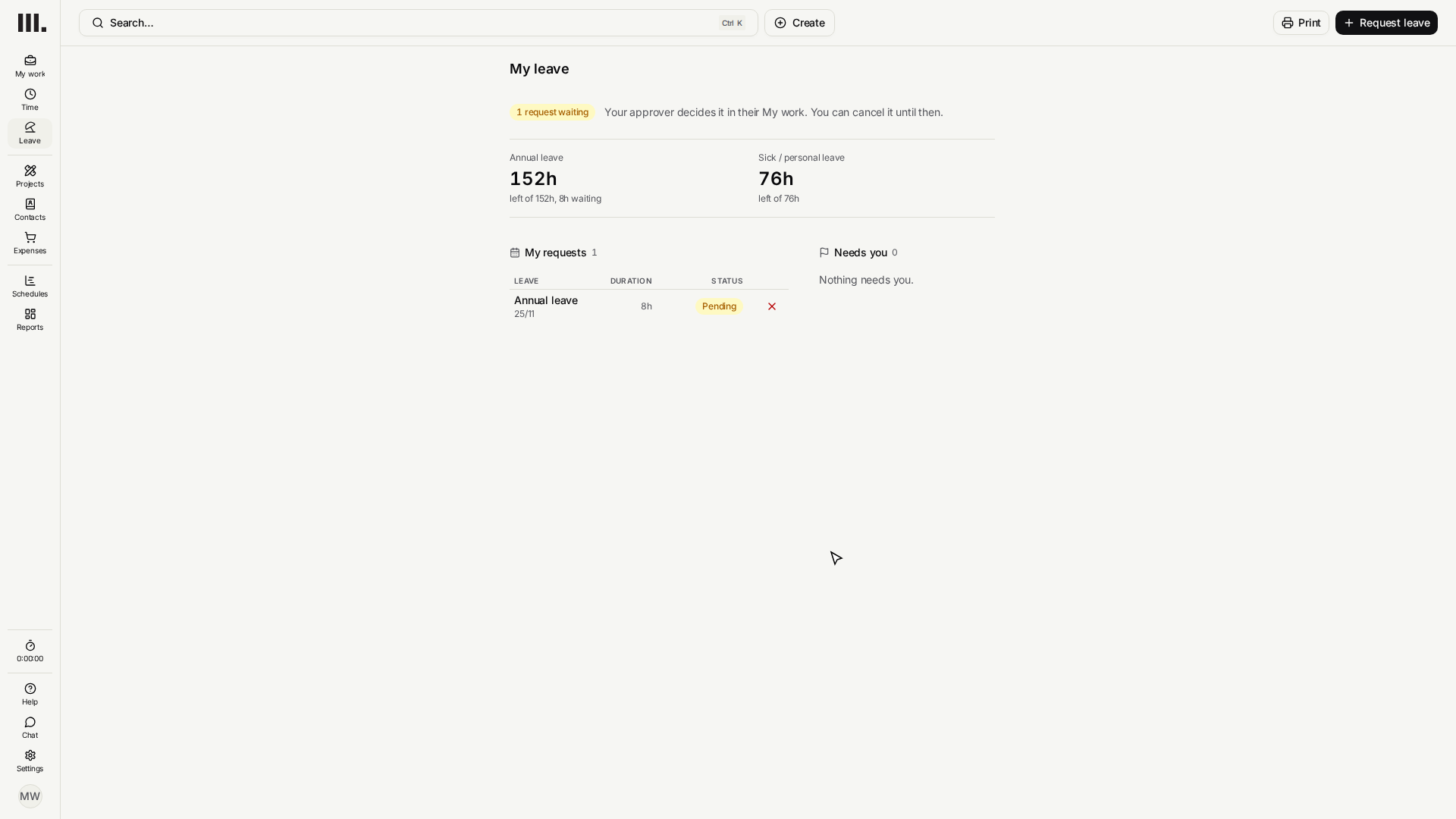
If your practice tracks leave balances, the Leave page shows a figure for each leave type: hours you're entitled to this year, hours left, and hours pending. Marcus's Annual leave starts at 152 of 152 hours. When he submits an 8-hour request, it shows 8 hours pending, still against the full 152. Only when Sarah approves it does the balance drop to 144 of 152.
A pending request shows on your balance so you can see what you've asked for, but it doesn't spend anything. Approval is the step that spends the balance, writes the days onto your timesheet, and lowers your hours on the schedule.
Your entitlement is set by an administrator. There is no screen where you set your own. If the number looks wrong, or you have no balance at all, ask your practice admin. You can still request leave without an entitlement.
Kinds of leave
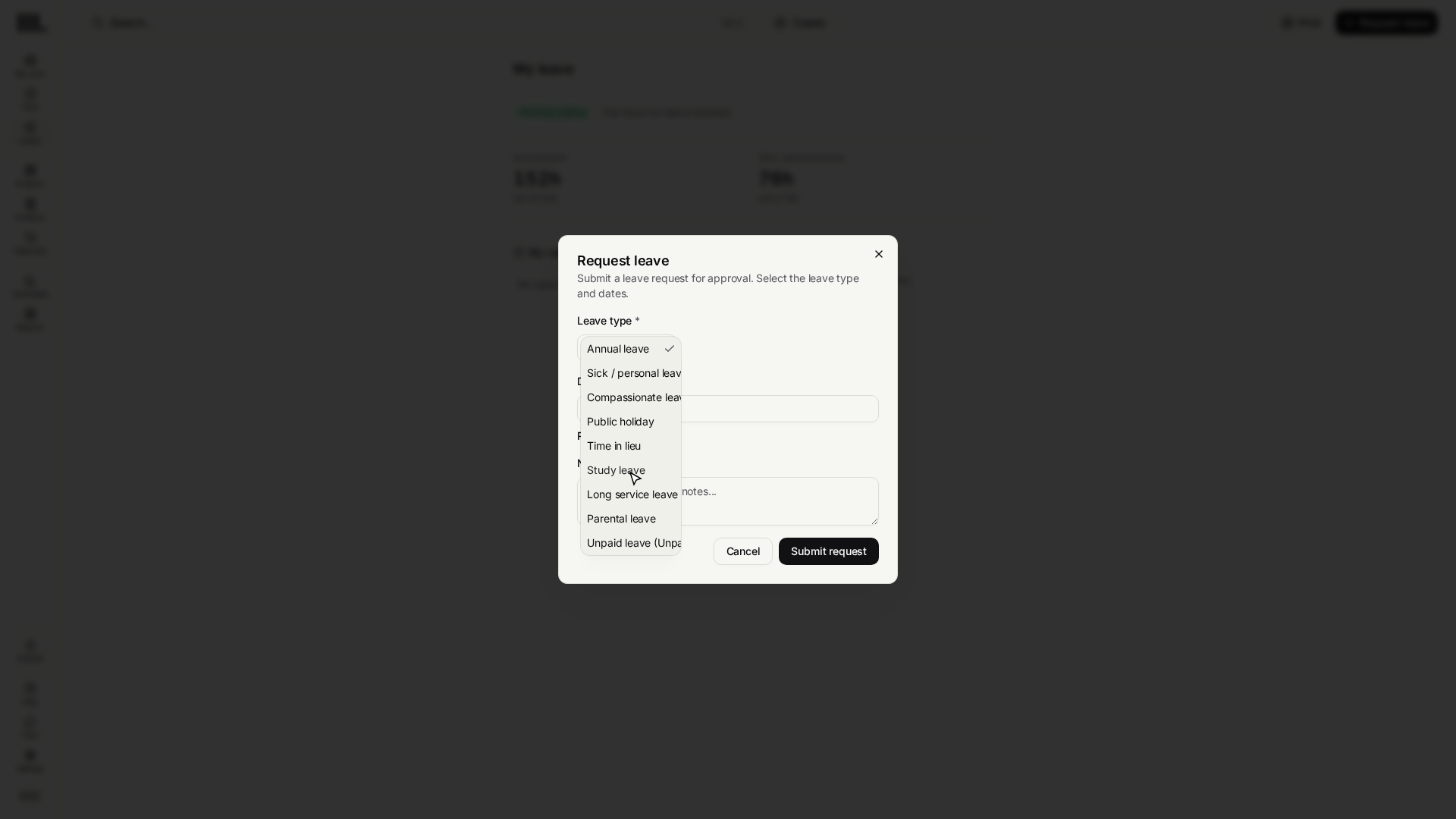
Open Leave type on the request form to see your practice's kinds of leave. A new practice starts with these:
- Sick / personal leave and Compassionate leave need no approval. They are logged straight away, because nobody plans to be sick.
- Annual leave, Study leave, Long service leave and Parental leave wait for your approver, because they are planned and the practice may need to move work around them.
- Time in lieu is earned by working past your normal day, when the practice turns it on.
- Unpaid leave waits for approval and costs the practice nothing.
- Public holiday is filled in from the practice's holiday calendar. See Public holidays and closures.
Your practice may have renamed, added or retired some of these.
Request a day off
- 1
Open Leave from the rail. Check your Annual leave balance before you ask: Marcus has 152h left of 152h. Sick / personal leave sits beside it.
- 2
Click Request leave, and open Leave type to see the kinds of leave and which ones need approval.
- 3
Keep Annual leave. The Date range starts on one day from today; change it if you need to. Requested leave works out the hours from your normal working day.
- 4
Add Notes for anything your approver should know, such as who covers your work.
- 5
Click Submit request. The request appears as Pending on your list.
- 6
Until your approver decides, you can cancel the request from the same list. You get a notification in My work when it's decided.
Who decides
Your request goes to the people allowed to approve your leave: administrators such as a Director, and the lead of a team you're in. It waits in their Waiting for you list. Your own requests never wait in your own list, so in a small practice the Director approves everyone else's leave and someone else approves theirs.
Leave also shows up on the Time page
Requesting leave from the Leave page is only one way in. The Time page's work list carries a Leave section too, right after Admin, and it treats leave types differently depending on whether they need approval.
A leave type that doesn't need approval works exactly like an admin or client task on that list: drag it onto a day and it's logged straight away, no request and no approval step in between. A leave type that needs approval can't be dragged. Clicking it instead opens the same request form you'd reach from the Leave page, with that leave type already selected.
However it's logged, an approved request writes one day of time for every working day in its range, using the person's normal hours for that day unless the request set specific hours. Approving is the step that actually fills the timesheet and drops the capacity line, not just a decision recorded somewhere else.
Setting up leave types
Administrators set up leave types, approvals and balances in Settings. See Set up leave types.
Troubleshooting
- My balance didn't change after I submitted. That's expected. Only an approved request lowers the balance.
- There's no Request leave button. Your practice has switched leave approvals off. Log leave straight onto your timesheet from the Time page instead.
- The leave type I need isn't listed. Leave types are set by an administrator in Settings. A retired type no longer appears for new requests.
- My balance looks wrong or is missing. Ask your practice admin to check your entitlement for that leave type and year.
Where this fits next
Next, claim an expense for a cost you've paid for the practice. If you approve other people's leave, read Approve leave.
Search Monument help
Search help articles and open a result.